

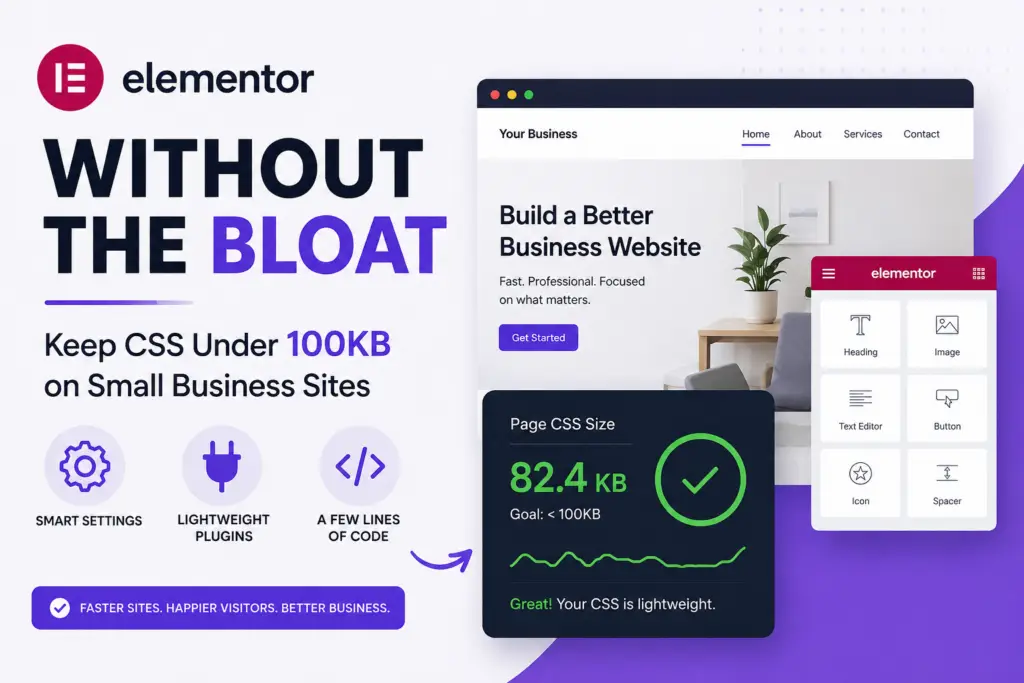
Elementor can power fast, lean WordPress sites if you control its CSS output. For small business sites, keeping page-builder CSS under 100KB is realistic and pays off in better load times and SEO. Here’s how to get there with the right settings, plugins, and a few code tweaks.
01Why Elementor CSS Gets Out of Hand
Elementor’s default setup is designed for flexibility, not minimalism. It loads global styles, widget CSS, and sometimes assets for features you never use. This can push your CSS payload over 300KB on a simple page. That slows down first paint, especially on mobile, and hurts your Core Web Vitals.
On most small business sites, you don’t need every widget or animation. The trick is to strip out what you don’t use and make Elementor generate only what’s needed for each page.
02Start With the Right Elementor Settings
First, review Elementor’s built-in performance settings. Go to Elementor > Settings > Advanced and look for these options:
- Improved Asset Loading: Turn this ON. It tells Elementor to load widget CSS only if a widget is used on the page.
- Optimized DOM Output: Enable this to reduce unnecessary wrappers and classes.
- Load Font Awesome 4 Support: Turn this OFF unless you use old icons.
After toggling these, regenerate CSS files from Elementor > Tools. This clears out old, unused styles.
03Remove Unused Widgets and Features
Every active widget adds CSS, even if you never drop it on a page. If you use Elementor Pro, disable widgets you don’t need in Elementor > Settings > Experiments or via the Elementor Custom Code panel.
- Go through your active widgets and turn off anything you don’t use. Common culprits: carousels, flip boxes, share buttons, and animated headlines.
- If you use a theme that bundles extra Elementor widgets, disable those too.
For most service businesses, you can get by with headings, text, images, buttons, and maybe a contact form. Everything else is optional.
04Use Code Snippets to Trim More CSS
Some Elementor CSS can’t be toggled in the UI. You can use the Code Snippets plugin or your child theme’s functions.php to remove more bloat.
Here are two useful snippets:
<br />
// Remove Elementor's global frontend CSS if not needed<br />
add_action('wp_enqueue_scripts', function() {<br />
  if (!is_page('your-landing-page')) {<br />
    wp_dequeue_style('elementor-frontend');<br />
  }<br />
}, 20);<br /><br />
// Prevent loading of unused Elementor icon libraries<br />
add_action('elementor/frontend/after_register_styles', function() {<br />
wp_deregister_style('elementor-icons');<br />
wp_deregister_style('elementor-icons-fa-brands');<br />
wp_deregister_style('elementor-icons-fa-solid');<br />
});<br />Test these on a staging site first. If you use Elementor icons or global styles, adjust the code so you don’t break your layout.
05Lean on a Minimal Theme
Your theme can add its own CSS bloat. For Elementor, use a barebones theme like Hello Elementor or GeneratePress with only essential modules enabled. Avoid themes that bundle extra sliders, popups, or heavy typography options.
Check your theme’s customizer for any global CSS or font settings that overlap with Elementor. Turn off what you don’t need. The goal is to let Elementor control as much of the styling as possible, so you don’t load duplicate CSS.
06Audit and Measure Your CSS Payload
After making changes, measure your CSS size. Use Chrome DevTools Network tab or the Coverage tool to see total CSS loaded per page. Aim for under 100KB compressed. On most small business Elementor sites, this is achievable with the steps above.
Watch for these common pitfalls:
- Global widgets or templates that load CSS everywhere, even when not visible.
- Plugins that add Elementor widgets and their own CSS. Disable or replace with lighter options.
- Cache plugins that don’t purge old CSS after changes. Always clear cache after updates.
07When to Use a CSS Optimizer Plugin
If you still can’t get under 100KB, try a CSS optimization plugin. Asset CleanUp or Perfmatters let you unload CSS per page. Use them to disable Elementor CSS on pages built with the block editor or other builders.
Be careful with CSS minification and combining. Sometimes, combining all CSS into one file can delay first paint. Test both ways with tools like PageSpeed Insights or WebPageTest.
08Real-World Results
On most service business sites, these steps cut Elementor CSS from over 200KB to under 100KB. That’s enough to move your mobile performance from “needs improvement” to “good” in Core Web Vitals.
Sites with lots of widgets or legacy templates may need more work. But for most local business sites, you’ll see results in a day.
09Summary: Keep Elementor Lean
- Use Elementor’s built-in performance settings.
- Disable unused widgets and features.
- Use code snippets to remove global CSS and icon fonts.
- Pick a minimal theme and avoid duplicate styling.
- Measure your CSS, and use a CSS optimizer if needed.
With these steps, Elementor can deliver sites that load fast and score well on SEO audits. You don’t have to give up page builders to get a lean, high-performing site.
